 Subscribe
Tampilkan postingan dengan label Regedit. Tampilkan semua postingan
Tampilkan postingan dengan label Regedit. Tampilkan semua postingan
0
Ketika File Excel 2007 menggunakan password macro secara otomatis dinonaktifkan alias disabled,
mungkin karena macro tidak dapat dijalankan karena file yang dienkripsi.
bahkan dengan menggunakan file Excel Macro Enabled Workbook alias .XLSM
Maka solusinya adalah sebagai berikut:
1: klik Windows start button
2: klik Run
3: ketik "regedit" (tanpa tanda petik)
4: OK
5: Pilih Folder "HKEY_CURRENT_USER"
\Software
\Microsoft
\Office
\12.0
\Excel
\Security
5: klik kanan pada layar kosong sebelah kanan
6: Pilih New> DWORD
7: Ketik "ExcelBypassEncryptedMacroScan" (tanpa tanda petik)
4: Tekan Enter
5: Double klik pada nama "ExcelBypassEncryptedMacroScan"
6: Mengubah 0 menjadi 1
7: OK
9: File> Keluar untuk menutup Registry Editor.
10: Buka kembali Excel 2007 dan open file yang dipassword tadi dan coba jalankan macronya.
atau download file melalui link dibawah ini, kemudian extract dan langsung jalankan dengan double klik.
http://www.ziddu.com/download/19464335/b4r12y-PassWord.rar.html
Source:rondebruin
120524 karena pak Beby, laptopnya gak bisa jalankan macronya :D
Excel 2007 Macro Disabled karena Password File
Kamis, 24 Mei 2012
Excel,
Ms Office,
Regedit,
Visual Basic,
Windows 7,
Windows Vista,
Windows XP
Ketika File Excel 2007 menggunakan password macro secara otomatis dinonaktifkan alias disabled,
mungkin karena macro tidak dapat dijalankan karena file yang dienkripsi.
bahkan dengan menggunakan file Excel Macro Enabled Workbook alias .XLSM
Maka solusinya adalah sebagai berikut:
1: klik Windows start button
2: klik Run
3: ketik "regedit" (tanpa tanda petik)
4: OK
5: Pilih Folder "HKEY_CURRENT_USER"
\Software
\Microsoft
\Office
\12.0
\Excel
\Security
5: klik kanan pada layar kosong sebelah kanan
6: Pilih New> DWORD
7: Ketik "ExcelBypassEncryptedMacroScan" (tanpa tanda petik)
4: Tekan Enter
5: Double klik pada nama "ExcelBypassEncryptedMacroScan"
6: Mengubah 0 menjadi 1
7: OK
9: File> Keluar untuk menutup Registry Editor.
10: Buka kembali Excel 2007 dan open file yang dipassword tadi dan coba jalankan macronya.
atau download file melalui link dibawah ini, kemudian extract dan langsung jalankan dengan double klik.
http://www.ziddu.com/download/19464335/b4r12y-PassWord.rar.html
Source:rondebruin
120524 karena pak Beby, laptopnya gak bisa jalankan macronya :D
0
Windows 7 Error BDE Administrator
Rabu, 01 Februari 2012
Aplikasi,
BDE Administrator,
Delphi,
OS - Operating System,
Regedit,
Repair,
Setting Software,
Windows 7
Saat ingin menjalankan program yang dibuat oleh Delphi dan menggunakan database yang terkait dengan BDE Administrator, maka tidak dapat langsung dijalankan begitu saja.
Lakukan install ulang BDE Administrator dengan menggunakan login Administrator.
Petunjuk untuk Login Administrator.
Semoga bermanfaat. :D
Pertama error yang terlihat pada program tertentu :

Kemudian pesan error :
 |
1. Pertama, configure the permission for the BDE in the registry.
Pastikan kita masuk dengan Account Administrator:- Start > Run > Regedit.

- Plih HKEY_LOCAL_MACHINE
- Pilih Folder SOFTWARE.
- Klik kanan pada folder "Borland".

- Pilih menu Permissions

- Klik "Users".
- Pada "Permissions for Users ", centang "Allow" untuk Full Control. Kemudian klik OK.
- Klik OK
- Tutup Registry Editor
- Jalankan Aplikasi sebagai Administrator


Lakukan install ulang BDE Administrator dengan menggunakan login Administrator.
Petunjuk untuk Login Administrator.
Semoga bermanfaat. :D
0
Cara Login Administrator di
Windows 7 dan Vista. Banyak orang yang sudah tahu bagaimana cara login
administrator di windows XP.
Terus bagaimana Cara Login Administrator di Windows 7 dan Vista. Apakah
account Administrator juga ada di windows 7 dan vista ?
Windows 7 dan Vista sebenarnya juga punya account Administrator, akan tetapi karena account Administrator tersebut tidak aktif (defaultnya), maka kita tidak akan bisa menggunakannya sebelum account Administrator tersebut di aktifkan. Dengan aktifnya account administrator tersebut, maka kita akan bisa login ke Administrator.
Bagamana Cara Login Administrator di Windows 7 dan Vista ?
Cara Mengaktifkan Account Administrator di Windows 7 dan Vista :
Pertama, Login sebagai account user yang biasa Anda pakai. Kemudian jalankan perintah Command Prompt sebagai administrator di windows 7 / Vista dengan mengklik kanan dan memilih "Run as administrator".
 Sekarang ketik perintah berikut:
net user administrator /active:yes
 Anda akan melihat pesan bahwa perintah berhasil diselesaikan. kemudian
Log out, dan sekarang Anda akan melihat account Administrator sebagai
pilihan. (Catatan : screenshot ini dari Windos Vista, tapi ini bekerja
juga di Windows 7)
Anda akan melihat pesan bahwa perintah berhasil diselesaikan. kemudian
Log out, dan sekarang Anda akan melihat account Administrator sebagai
pilihan. (Catatan : screenshot ini dari Windos Vista, tapi ini bekerja
juga di Windows 7)

Kemudian untuk login Administrator di Windows 7 / Vista ini, Anda bisa langsung klik account Administrator yang tampil.
Catatan : Account Administrator ini belum terpassword jadi Anda bisa langsung login Administrator tanpa password.
Kemudian bagaimana caranya agar Accoun Administrator ini tidak tampil lagi?
Cara Menonaktifkan Account Administrator di Windows 7 dan Vista :
Pertama, Login sebagai account user yang biasa Anda pakai. Kemudian jalankan perintah Command Prompt sebagai administrator di windows 7 / Vista dengan mengklik kanan dan memilih "Run as administrator".
Sekarang ketik perintah berikut:
net user administrator /active:no

Account Administrator sekarang akan dinonaktifkan, dan tidak akan muncul lagi pada layar login windows 7 dan Vista.
Selamat mencoba.
Cara Login Administrator Windows 7
Senin, 12 Desember 2011
OS - Operating System,
Regedit,
Security,
Tips or Tricks Windows,
Windows 7
Windows 7 dan Vista sebenarnya juga punya account Administrator, akan tetapi karena account Administrator tersebut tidak aktif (defaultnya), maka kita tidak akan bisa menggunakannya sebelum account Administrator tersebut di aktifkan. Dengan aktifnya account administrator tersebut, maka kita akan bisa login ke Administrator.
Bagamana Cara Login Administrator di Windows 7 dan Vista ?
Cara Mengaktifkan Account Administrator di Windows 7 dan Vista :
Pertama, Login sebagai account user yang biasa Anda pakai. Kemudian jalankan perintah Command Prompt sebagai administrator di windows 7 / Vista dengan mengklik kanan dan memilih "Run as administrator".
net user administrator /active:yes
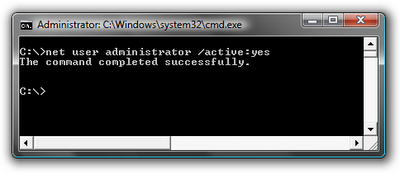

Kemudian untuk login Administrator di Windows 7 / Vista ini, Anda bisa langsung klik account Administrator yang tampil.
Catatan : Account Administrator ini belum terpassword jadi Anda bisa langsung login Administrator tanpa password.
Kemudian bagaimana caranya agar Accoun Administrator ini tidak tampil lagi?
Cara Menonaktifkan Account Administrator di Windows 7 dan Vista :
Pertama, Login sebagai account user yang biasa Anda pakai. Kemudian jalankan perintah Command Prompt sebagai administrator di windows 7 / Vista dengan mengklik kanan dan memilih "Run as administrator".
Sekarang ketik perintah berikut:
net user administrator /active:no

Account Administrator sekarang akan dinonaktifkan, dan tidak akan muncul lagi pada layar login windows 7 dan Vista.
Selamat mencoba.
0
 When one or more users process many transactions in a multi-user environment, the transactions may fail with the following error message: File sharing lock count exceeded. Increase MaxLocksPerFile registry entry.
The SetOption method temporarily overrides the default number of locks per file. You set the default number of locks per file when you set the MaxLocksPerFile registry key. You set the new value by using the SetOption method. The new value is valid until you close the DBEngine object. To use Method 2, follow these steps:
Changes you make to the MaxLocksPerFile setting by using the SetOption method are available only for the current session.
Ini pengalaman pribadi saat melakukan import dari file excel ke database Ms Access 2007. :)
Ms Access File sharing lock count exceeded
Rabu, 03 November 2010
Error Ms Access,
Ms Access,
Regedit,
Setting Software,
Tips or Tricks Windows

Method 1: Set the registry key to MaxLocksPerFile to increase the maximum number of locks per file
- Click Start, and then click Run.
- Type regedit, and then click OK.
- Use the appropriate method:
- In Microsoft Access 2000, in Microsoft Access 2002, and in Microsoft Office Access 2003 that are running on a 32-bit Windows operating system, use Registry Editor to locate the following registry key:HKEY_LOCAL_MACHINE\SOFTWARE\Microsoft\Jet\4.0\Engines\Jet 4.0
In Microsoft Access 2000, in Microsoft Access 2002, and in Microsoft Office Access 2003 that are running on a 64-bit Windows operating system, use Registry Editor to locate the following registry key:HKEY_LOCAL_MACHINE\SOFTWARE\Wow6432Node\Microsoft\Jet\4.0\Engines\Jet 4.0 - In Microsoft Office Access 2007 that is running on a 32-bit Windows operating system, use Registry Editor to locate the following registry key:HKEY_LOCAL_MACHINE\SOFTWARE\Microsoft\Office\12.0\Access Connectivity Engine\Engines\ACE
In Microsoft Office Access 2007 that is running on a 64-bit Windows operating system, use Registry Editor to locate the following registry key:HKEY_LOCAL_MACHINE\SOFTWARE\Wow6432Node\Microsoft\Office\12.0\Access Connectivity Engine\Engines\ACE
- In Microsoft Access 2000, in Microsoft Access 2002, and in Microsoft Office Access 2003 that are running on a 32-bit Windows operating system, use Registry Editor to locate the following registry key:
- In the right pane of Registry Editor, double click MaxLocksPerFile.
- On the Edit DWORD Value dialog box, click Decimal.
- Modify the value of the Value data box as required, and then click OK.
Method 2: Use the SetOption method to temporarily change MaxLocksPerFile
Note The sample code in this article uses Microsoft Data Access Objects. For this code to run correctly, you must reference the Microsoft DAO 3.6 Object Library. To do so, click References on the Tools menu in the Visual Basic Editor, and make sure that the Microsoft DAO 3.6 Object Library check box is selected.The SetOption method temporarily overrides the default number of locks per file. You set the default number of locks per file when you set the MaxLocksPerFile registry key. You set the new value by using the SetOption method. The new value is valid until you close the DBEngine object. To use Method 2, follow these steps:
- Open Microsoft Access.
- Open a database, and then press Alt+F11 to launch the Visual Basic editor.
- On the Microsoft Visual Basic -<Database Name>-[<Module Name> (Code)] window, click Immediate Window in the View menu.
- In Immediate Window, enter the following code.
DAO.DBEngine.SetOption dbmaxlocksperfile,15000
- Press the ENTER key to run the line of code.
Note This temporarily sets the MaxLocksPerFile value to 15,000.
Changes you make to the MaxLocksPerFile setting by using the SetOption method are available only for the current session.
Ini pengalaman pribadi saat melakukan import dari file excel ke database Ms Access 2007. :)
Langganan:
Postingan (Atom)
Translate This Blog


Contact me


